Help Center / Hotel Management
How to Add and Manage Room Types in OnePe Hotel PMS
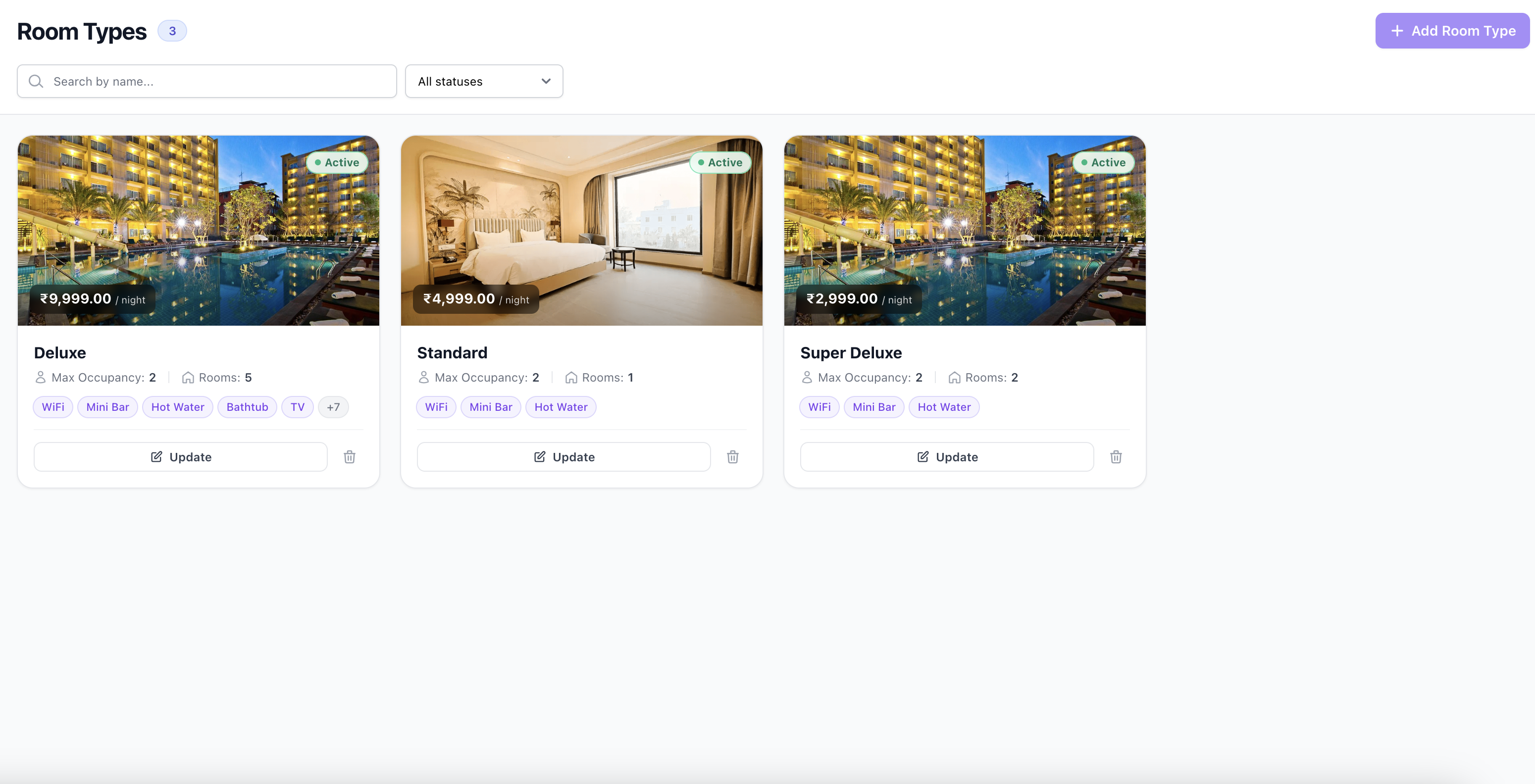
The Room Types module in OnePe Hotel PMS allows property managers to create, organize, and configure distinct accommodation categories. Proper setup ensures accurate booking options, public-facing pricing display, and clear amenity details for guests.
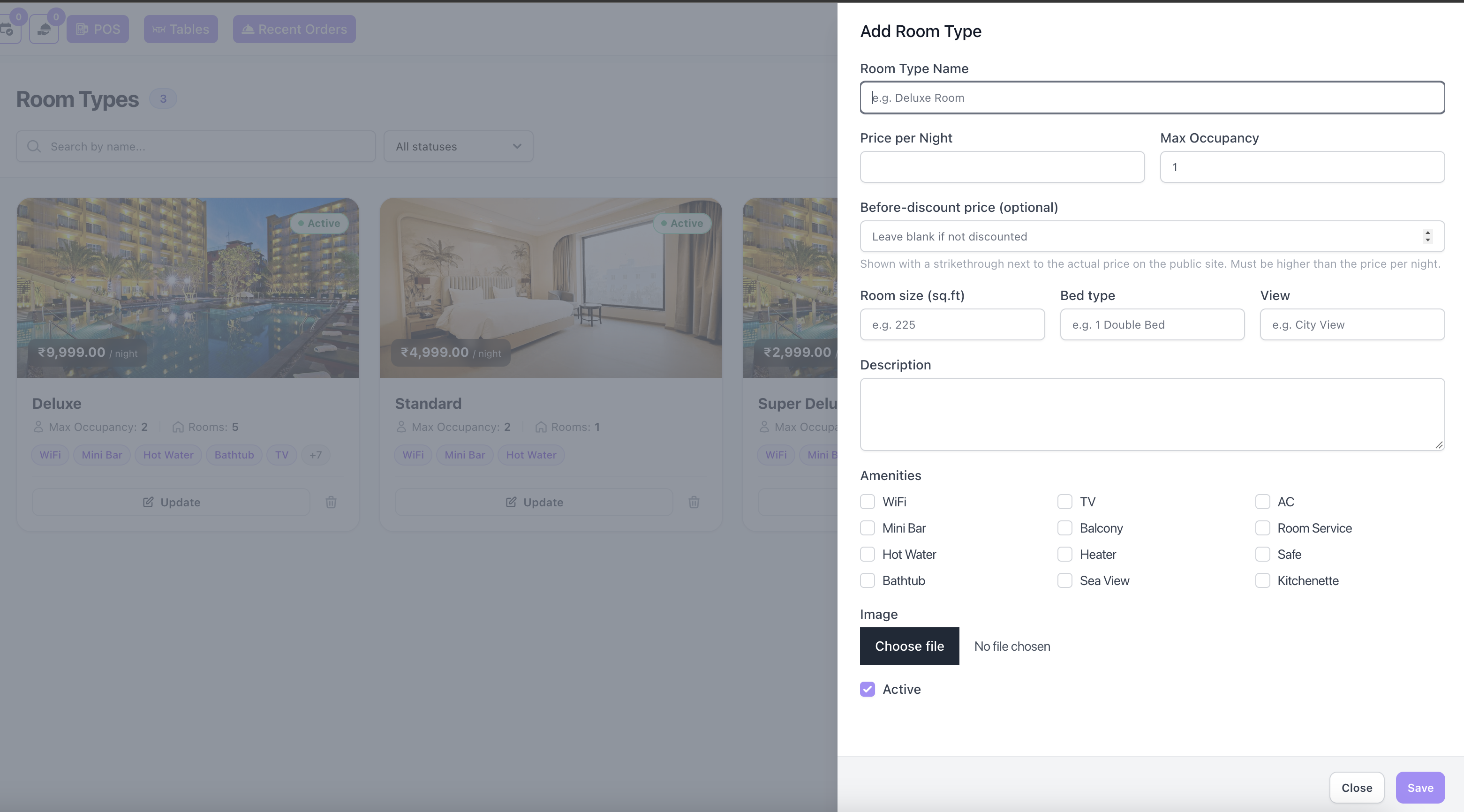
Field-by-Field Breakdown (Add Room Type Form)
- Room Type Name[cite: 2]
- What it is: The official title of the room category displayed to staff and guests (e.g., Deluxe Room, Standard Suite)[cite: 2].
- Price per Night[cite: 2]
- What it is: The standard nightly rate charged for this room type[cite: 2].
- Max Occupancy[cite: 2]
- What it is: The maximum number of guests permitted to stay in this room type[cite: 2].
- Before-discount price (optional)[cite: 2]
- What it is: The original or struck-through price displayed next to the actual rate on public booking sites to indicate a discount[cite: 2]. Must be higher than the regular price per night[cite: 2].
- Room size (sq.ft)[cite: 2]
- What it is: The physical floor area of the room measured in square feet[cite: 2].
- Bed type[cite: 2]
- What it is: The configuration or size of the bed provided in the room (e.g., 1 Double Bed)[cite: 2].
- View[cite: 2]
- What it is: The scenic outlook or perspective visible from the room (e.g., City View, Pool View)[cite: 2].
- Description[cite: 2]
- What it is: A text summary detailing the unique features, ambiance, and highlights of the room type[cite: 2].
- Amenities[cite: 2]
- What it is: Checkbox options to specify included room facilities and features (e.g., WiFi, Mini Bar, Hot Water, Bathtub, TV, Balcony, Heater, Sea View, AC, Room Service, Safe, Kitchenette)[cite: 2].
- Image[cite: 2]
- What it is: File upload option to attach representative photos of the room type for the booking interface[cite: 2].
- Active Checkbox[cite: 2]
- What it is: Toggle to enable or disable the room type's availability for active bookings on the platform.
Step-by-Step Guide to Adding a Room Type
- Step 1: Go to your OnePe Hotel PMS dashboard and select the Room Types section from the navigation menu[cite: 2].
- Step 2: Click on the Add Room Type button to open the configuration side panel[cite: 2].
- Step 3: Enter the Room Type Name, Price per Night, and Max Occupancy[cite: 2].
- Step 4: Fill out optional specifications such as Room size, Bed type, View, and a descriptive summary[cite: 2].
- Step 5: Select the applicable Amenities checkboxes and upload a clear photo of the room[cite: 2].
- Step 6: Ensure the Active box is checked, then click Save to publish the new room type[cite: 2].